
This is the client-account guide, not the agency white-label guide. Use it inside each business or sub-account after the agency shell is ready. It mirrors Votel’s in-app checklist but adds decisions, safety checks, and definitions of “done.”
Confirm your account
Confirm that you are working in the correct client account before changing anything.
- Confirm the business or location name and owner email.
- Open the checklist from the progress percentage in the top navigation.
- Check that “Create your account” is complete.
The correct business is selected and the account item is checked.
Customize contacts
Shape the CRM around the facts that affect qualification, routing, reporting, and follow-up.
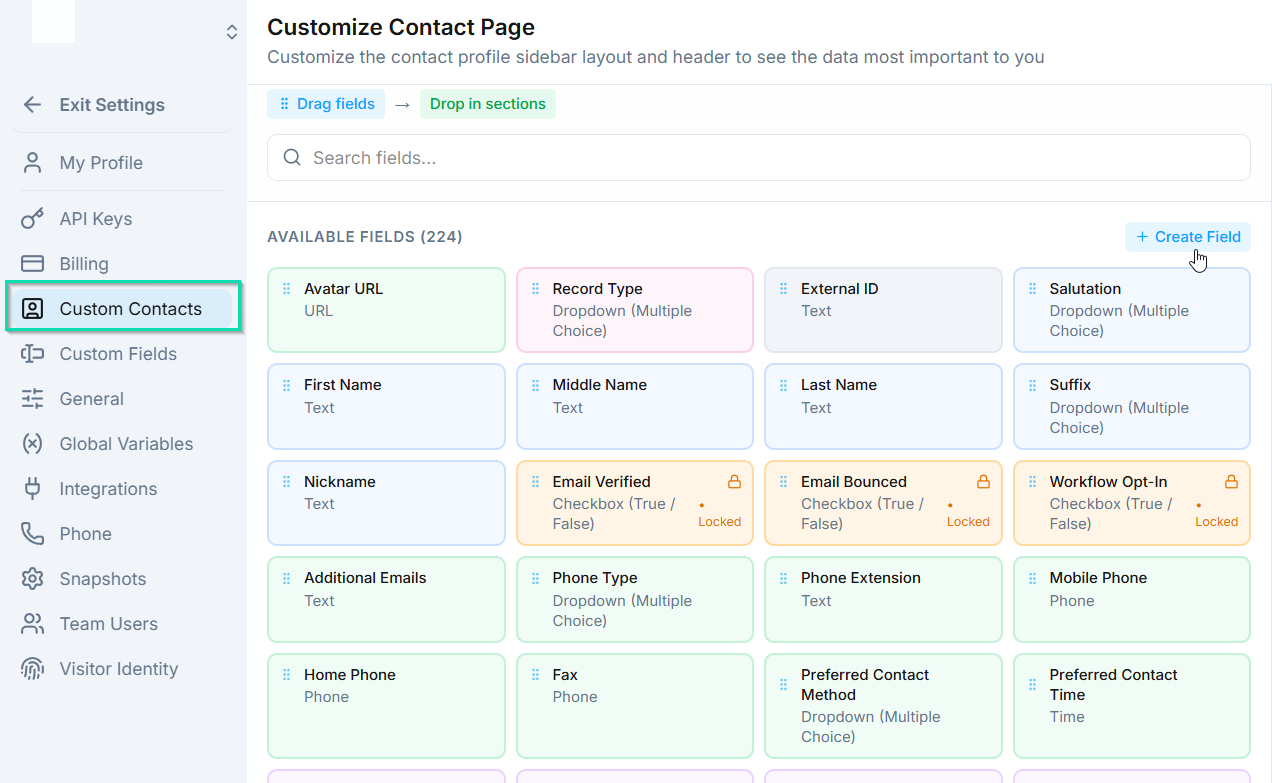
- Choose Customize with AI, or go to Settings → Custom Contacts.
- List the 5–10 facts the business needs about a lead.
- Add only useful fields, choose the right field types, and save.
- Open a test contact and confirm the layout is readable.
This combines Custom Fields and contact layout. The same data can feed agents, workflows, filters, and pipeline cards.
Help me design the contact record for [BUSINESS NAME], a [BUSINESS TYPE]. Ask what we sell, how we qualify a lead, and what the team needs before following up. Propose no more than 10 fields with name, type, allowed values, purpose, and where each will be used. Do not create or delete anything until I approve the table.
A test contact shows the right fields and every field has a purpose.
Review your pipeline
Use stages that describe meaningful movement in the buying process.
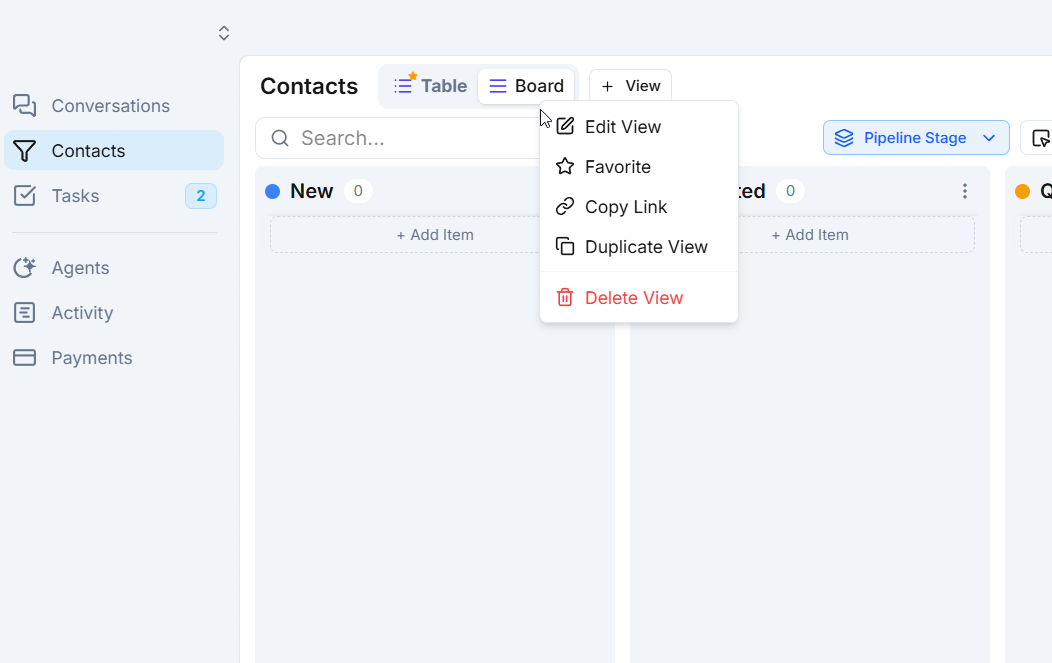
- Open Contacts → Pipeline.
- Use clear stages such as New Lead, Contacted, Qualified, Appointment Booked, Won, and Lost.
- Remove vague or duplicate stages.
- Create a test contact and move it through the first two stages.
Five to seven stages are enough for most first setups.
A test contact moves through a clear, real sales journey.
Build and test one AI agent
Start with one job, one audience, and one measurable outcome.
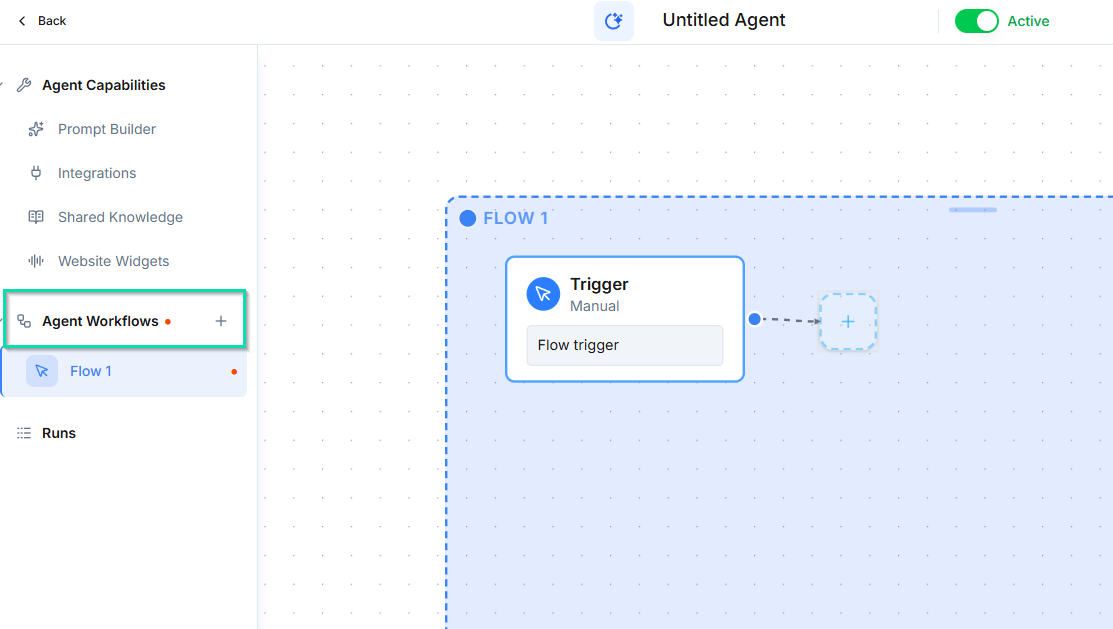
- Create one role, such as Front Desk or Lead Qualifier.
- Define identity, tone, rules, FAQs, and human handoff.
- Choose a model and voice, then test in the browser.
- Try a normal inquiry, unclear answer, prohibited request, and human handoff. Revise and retest.
Follow the seven-step first-agent guide for the current website-assisted flow, prompt anatomy, channel connection, and live testing.
Create a first-draft system prompt for an AI [ROLE] at [BUSINESS NAME]. Its primary outcome is [OUTCOME]. Include identity, opening behavior, data it may collect, FAQs, prohibited claims, escalation rules, and confirmation rules. Mark every missing fact as [NEEDS INPUT]. Then give me 10 test conversations. Never invent prices, policies, hours, or regulated advice.
The agent passes four test conversations and hands off correctly.
Connect email
Use a shared sender for a quick test or a branded identity for production.
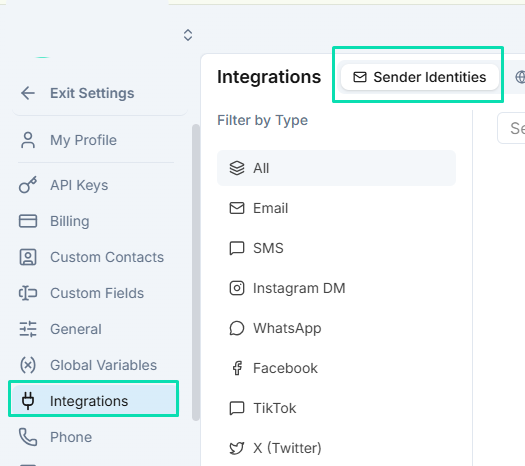
- Open Settings → Integrations → Sender Identities.
- Select a shared identity for testing, or add a branded email identity.
- Complete provider authorization and copy any account-specific DNS values exactly.
- Send a test and check From name, reply path, and spam placement.
Do not delete or replace MX, SPF, DKIM, or DMARC records without understanding the existing mail setup. Never create multiple SPF records.
Help me add Votel sender-identity DNS records for [DOMAIN] at [DNS PROVIDER]. First create a change plan and check conflicts. Do not change nameservers, delete records, or overwrite existing MX, SPF, DKIM, or DMARC. Never ask for passwords, API keys, recovery codes, or MFA codes. Pause before every Save and show the exact record and effect. After I approve, verify public DNS. Votel records: [PASTE EXACT RECORDS FROM VOTEL]
A test message arrives and replies go where expected.
Buy and route a phone number
Decide what answers the number and verify the recurring price before purchase.
- Open Settings → Phone → Buy Numbers.
- Search by country and area code, then review capabilities and price.
- Set the call destination before clicking Buy Now.
- Call from an outside phone and confirm the expected destination answers.
Buying a number does not make every type of outbound texting compliant.
An outside test call reaches the correct destination.
Connect a calendar
Connect real availability and prove a booking appears in both places.
- Click Open Scheduling and connect the correct external calendar.
- Set availability, duration, buffers, timezone, and required questions.
- Create a clearly labeled test booking.
- Verify the event and host/guest notifications.
Votel scheduling can work while this checklist item remains incomplete. The checklist is looking for an external calendar connection.
One test booking appears correctly in both systems with the right timezone.
Create and test one form
Capture only what the next action needs, then verify where every answer lands.
- Click Create with AI or open Forms.
- If unsure, choose a standard one-page form.
- Map answers to the correct contact fields.
- Set the success message or redirect and publish.
- Submit a test and verify the contact, submission, and workflow.
A test submission creates or updates the correct contact with every answer mapped.
Build or connect a website
Prove the content and conversion path on the temporary URL before connecting a domain.
- Describe the audience, offer, proof, and primary CTA.
- Review factual accuracy, mobile layout, contact details, and buttons.
- Publish to the provided URL and test the complete conversion path.
- Only then connect a domain using the exact DNS record shown.
- After DNS and SSL are active, retest on phone and desktop.
A public website domain is separate from an agency white-label app domain.
Turn the verified information below into a one-page Votel website brief. Include audience, offer, problem, outcome, three proof points, services, FAQs, CTA, contact details, and prohibited claims. Mark missing proof or policies as [NEEDS INPUT]. Then create a mobile-first QA checklist for links, forms, phone buttons, metadata, headings, accessibility, and tracking. Business information: [PASTE VERIFIED DETAILS]
The public page works on phone and desktop and every CTA completes its action.
Bookmark the training path
Use Votel Quick Start for deeper agent building and this SOP for account-level setup.
- Click Open Quick Start Docs.
- Bookmark the official Quick Start.
- Assign one next lesson tied to the first live use case.
- Manually mark any checklist item complete if it was finished another way.
The owner knows where training lives and has one specific next lesson.
The 10-minute launch check
Prove one complete customer journey before calling the account ready.