This is one run, not a two-step export and import. Sign in to HighLevel or your agency's white-label domain and switch into the sub-account you want to migrate before you open the extension: MoveOver reads whichever HighLevel location is open in the tab, so the account you see there is the account it migrates. With your own Votel API key connected, MoveOver writes the categories you choose straight into your Votel account while it runs, and keeps a local archive of everything it read either way. Votel shows what it can import, what it will change or skip, and the record count for each section before you switch anything on.
Open MoveOver and connect Votel
The first time you run a migration, add your own Votel API key and your MoveOver license key to the extension.
- Click the Chrome extensions icon, then open MoveOver.
- Paste your MoveOver license key if you have not already.
- In Votel, open Settings → API Keys, create a key, and paste it into MoveOver.
- Turn on Send contacts to Votel and Migrate automations to Votel so this run writes into your Votel account instead of only the archive.
MoveOver reads your HighLevel session and writes into Votel using your own key. Nothing passes through our servers.
Choose what to migrate and start the run
Select the categories and, where offered, individual records for this run.
- Review the categories in the extension against the 23 asset types MoveOver supports.
- Select the categories and records you want this run to include: a whole group, one type, or a single item.
- Click Export.
Nothing you leave unchecked is sent to Votel. It stays out of both the archive and your Votel account.
Let it finish
Keep the tab open while MoveOver reads the selected records from HighLevel and writes them into Votel.
- Leave the HighLevel tab open until the run reports complete.
- For each category with a Votel toggle on, MoveOver writes it into your Votel account as it goes, switched off until you review it.
- Every category, whether or not its Votel toggle is on, is also saved into your local archive.
- When it finishes, MoveOver saves the migration report and the archive to your Downloads folder.
MoveOver opens each funnel and website page in its own background tab to capture it, which is normal and is why that category is usually the slowest part of the run.
Open your report before you touch anything in Votel
The report is where you decide what to activate: what went into Votel, what needs a decision, and what stayed in the archive.
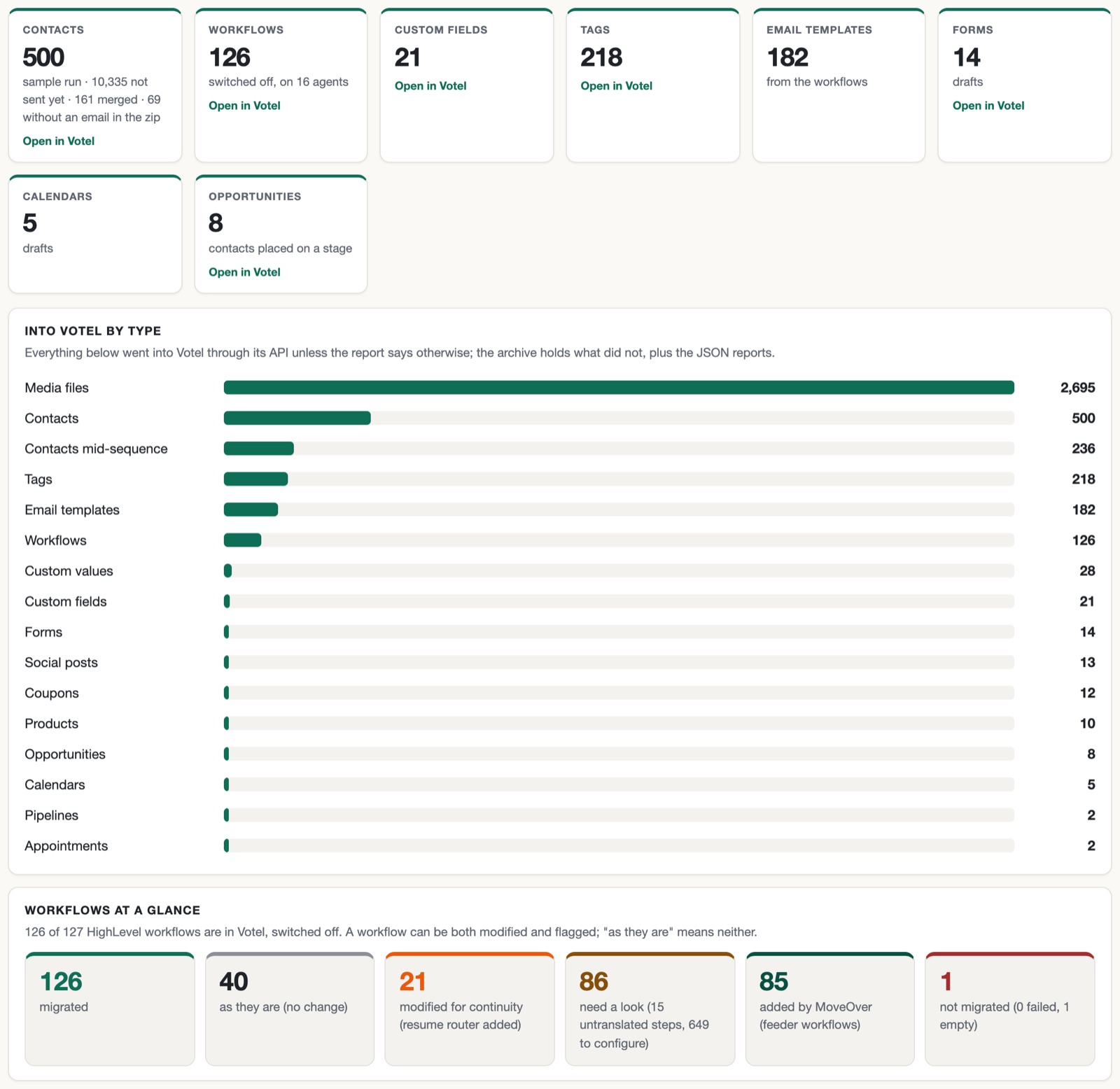
- Read the Overview: what went into Votel, by type.
- Open Workflows at a glance: how many arrived unchanged, how many were modified to keep contacts mid-sequence, and how many need a look.
- Read the Action items view for anything with no direct Votel equivalent: what it was, what it is now, and what to do.
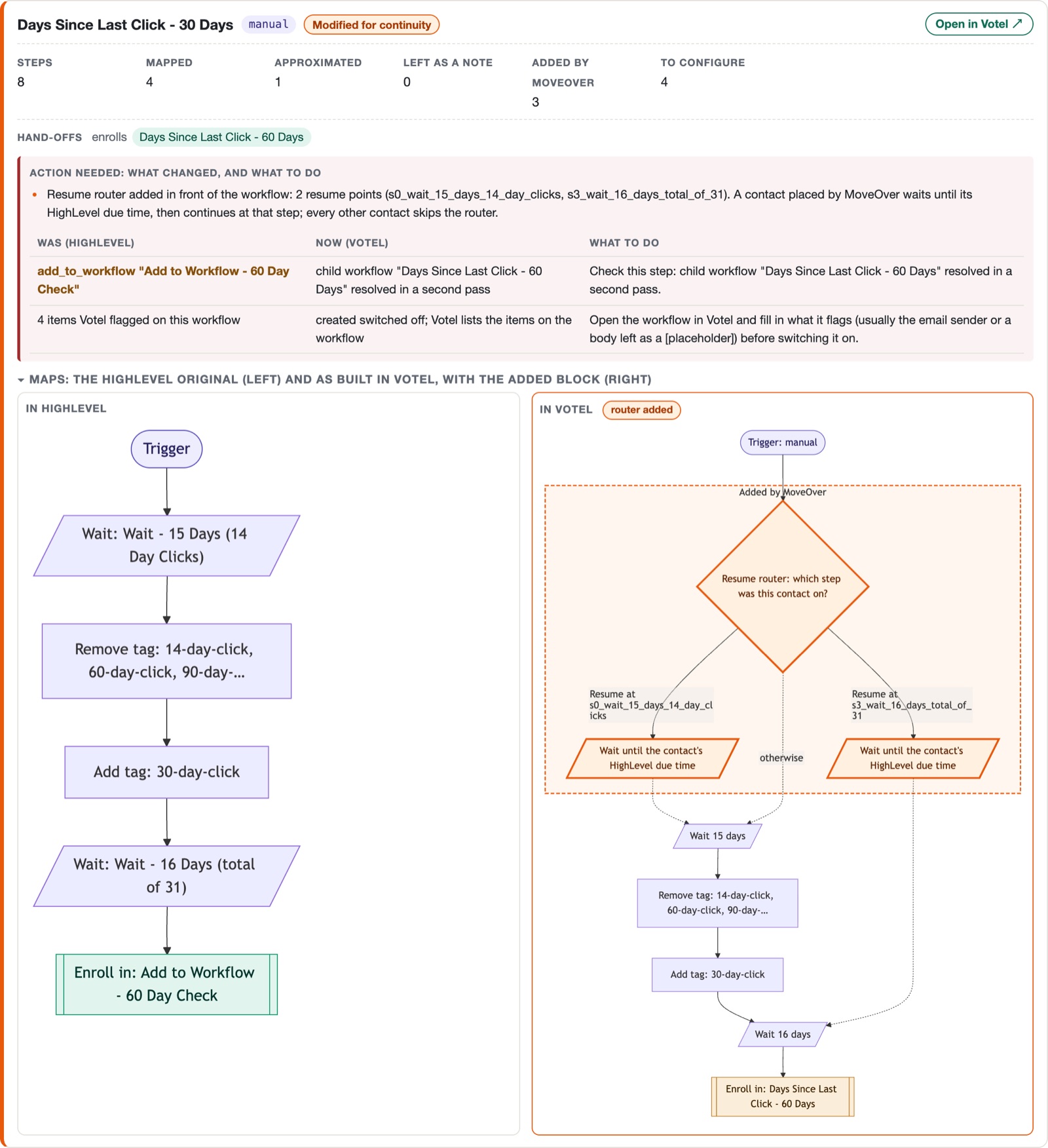
Every run gets a report like this, kept in your MoveOver library on this site. Open the full example report ↗
Switch on workflows and place contacts
Workflows arrive in Votel switched off. Review each one, switch it on when it is ready, then place contacts.
- Open a workflow from the report and compare the before-and-after map: the HighLevel original beside what MoveOver built in Votel.
- Resolve anything the report flagged as an action item for that workflow.
- Switch the workflow on in Votel.
- Press Place contacts once the workflows you want are switched on.
A contact who was waiting for day 3 in HighLevel resumes at day 3 in Votel, not from the top of the sequence.
Verify what landed, or undo the run
Check the run against Votel directly, or remove exactly what it created.
- Compare the report's read-back numbers (tags, fields, templates, workflows, and a random sample of contacts) against your Votel account.
- New to this: send only your 500 most recent contacts first, check the result in Votel, then run the rest.
- If something needs to stop, stop the run at any point. What already landed in Votel stays; the rest goes into your archive.
- To reverse a completed run, type UNDO. MoveOver removes exactly what that run created, in the right order, and nothing that was already in Votel.
It states which Votel account it wrote to, so you can confirm the run reached the right place.
You moved over!
Your selected HighLevel records are in Votel. Keep the report and the archive as your record of the run.
Migration handoff check
Before calling the move complete, confirm the destination and keep your records.