The agent we're building
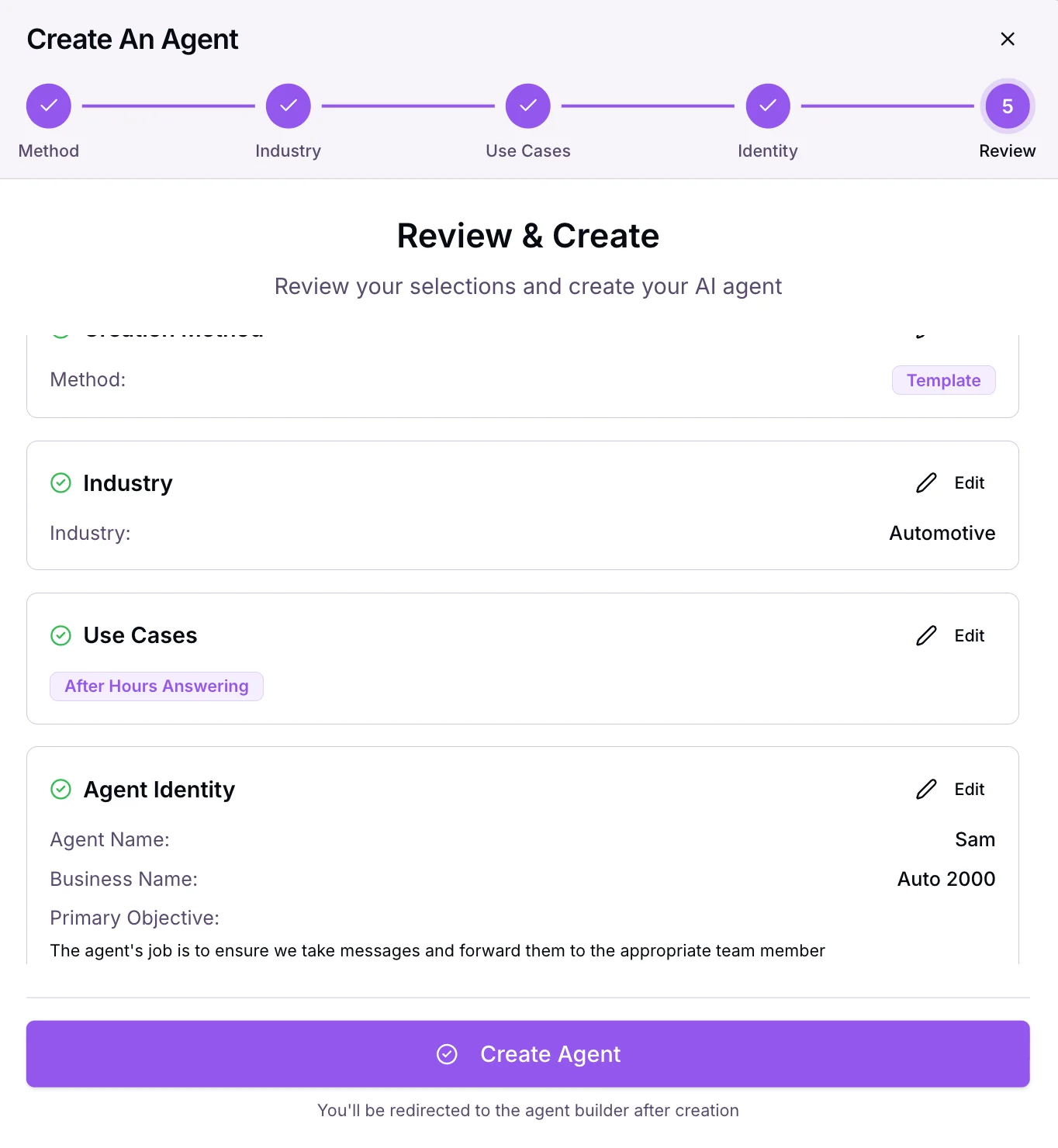
I wanted something every local business can use on day one: an after-hours receptionist. When the shop is closed, it answers the phone, figures out if the caller wants an appointment or has a question, books or answers, and makes sure the team gets a summary in the morning.
| Setting | What I entered |
|---|---|
| Starting method | Start from a Use Case |
| Industry | Automotive |
| Use case | After Hours Answering |
| Agent name | Sam |
| Business name | Auto 2000 (a test business) |
| Primary objective | The agent's job is to ensure we take messages and forward them to the appropriate team member |
Pick how to start
Open Agents in Votel and create a new agent. The first screen asks how you'd like to start. All three paths end in the same editor. The difference is how much Votel fills in for you.
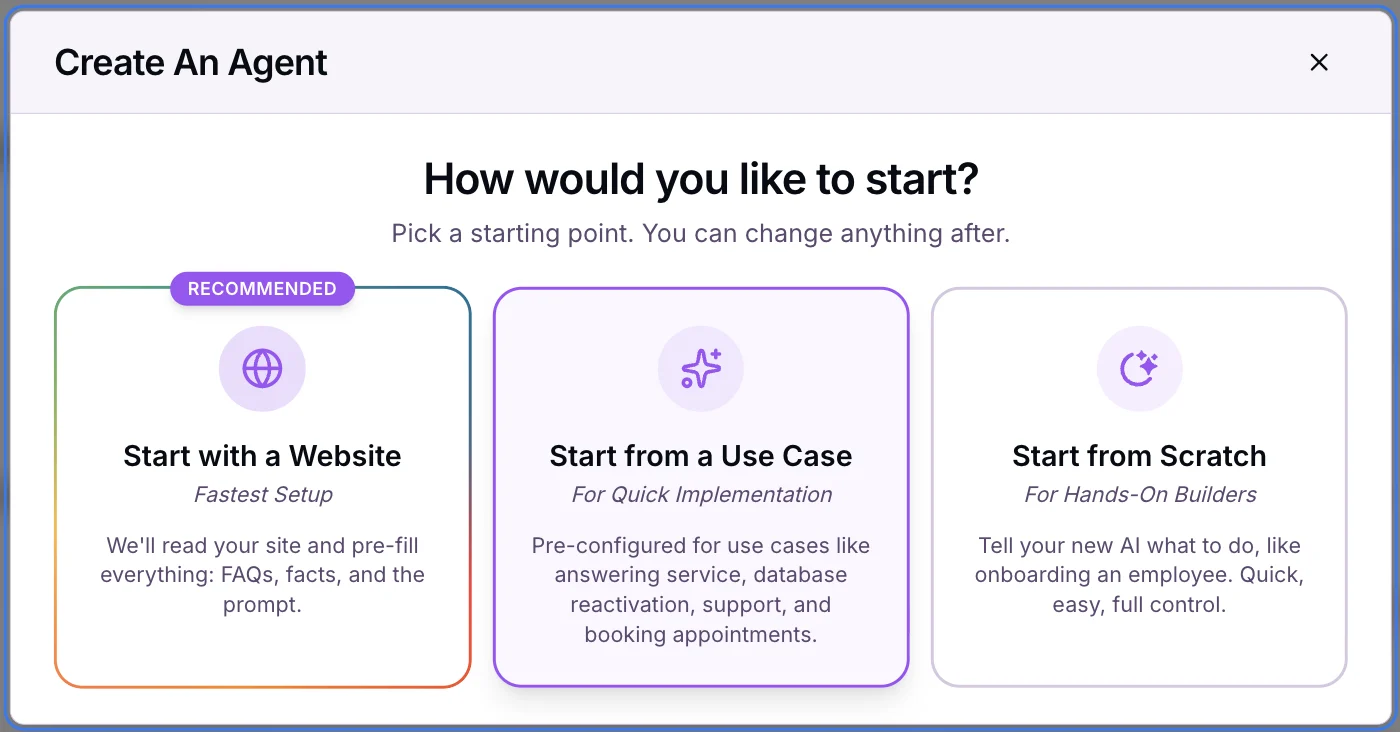
| Option | What Votel does | Pick it when |
|---|---|---|
| Start with a Website | Reads the site and pre-fills FAQs, facts and the prompt | The business has a good, current website |
| Start from a Use Case | Starts from a ready template for a job like answering service, reactivation, support or booking | You know the job you want done (this guide) |
| Start from Scratch | Gives you a blank agent to brief yourself | You want full control from line one |
Want the website path instead? It's covered step by step in Build your first Votel agent.
Choose the industry
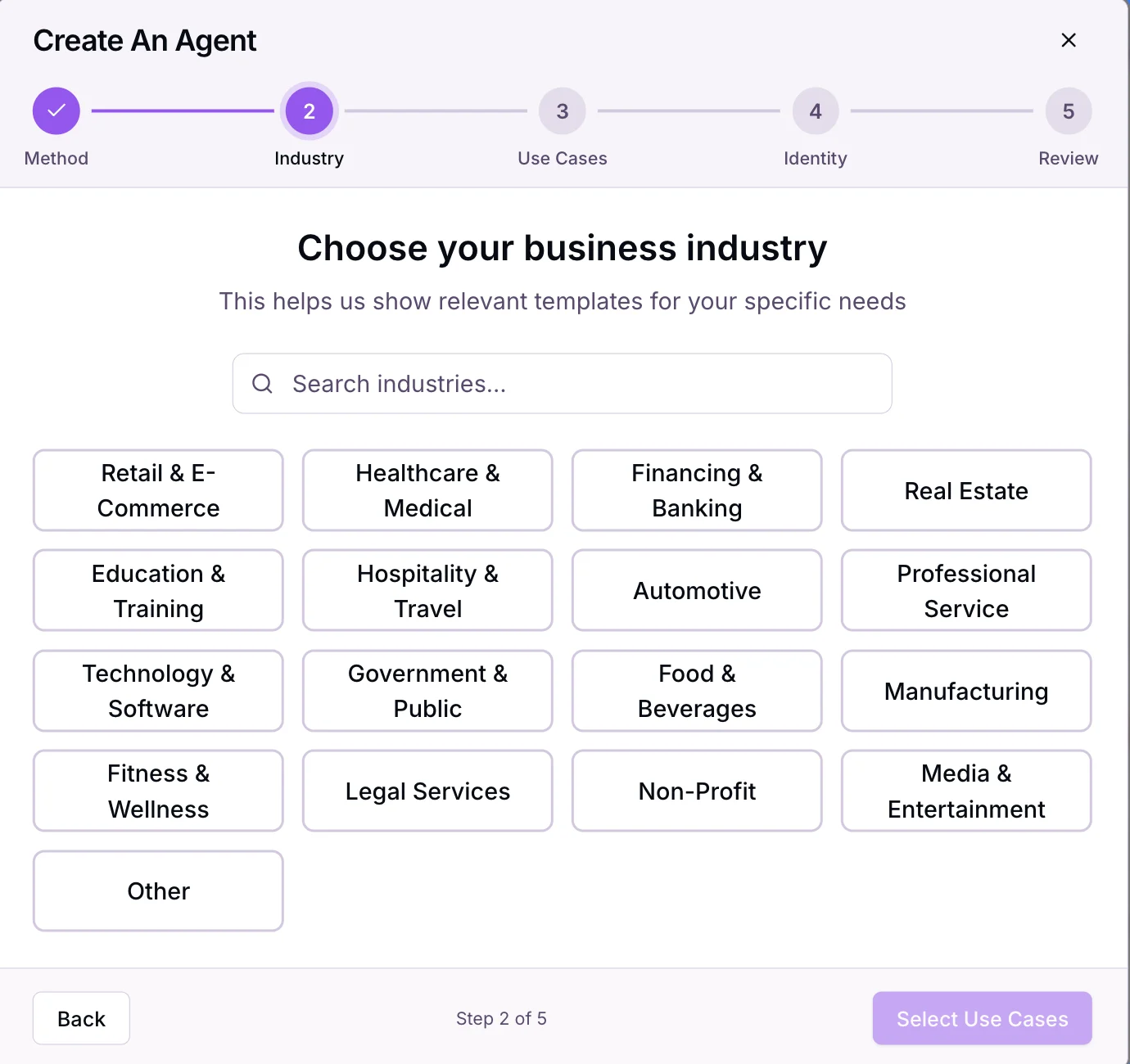
A progress bar appears across the top: Method, Industry, Use Cases, Identity, Review. Pick the industry closest to the business. Votel uses it to show the templates that fit.
There's a search box if you'd rather type. Nothing fits? Pick Other.
Select use cases
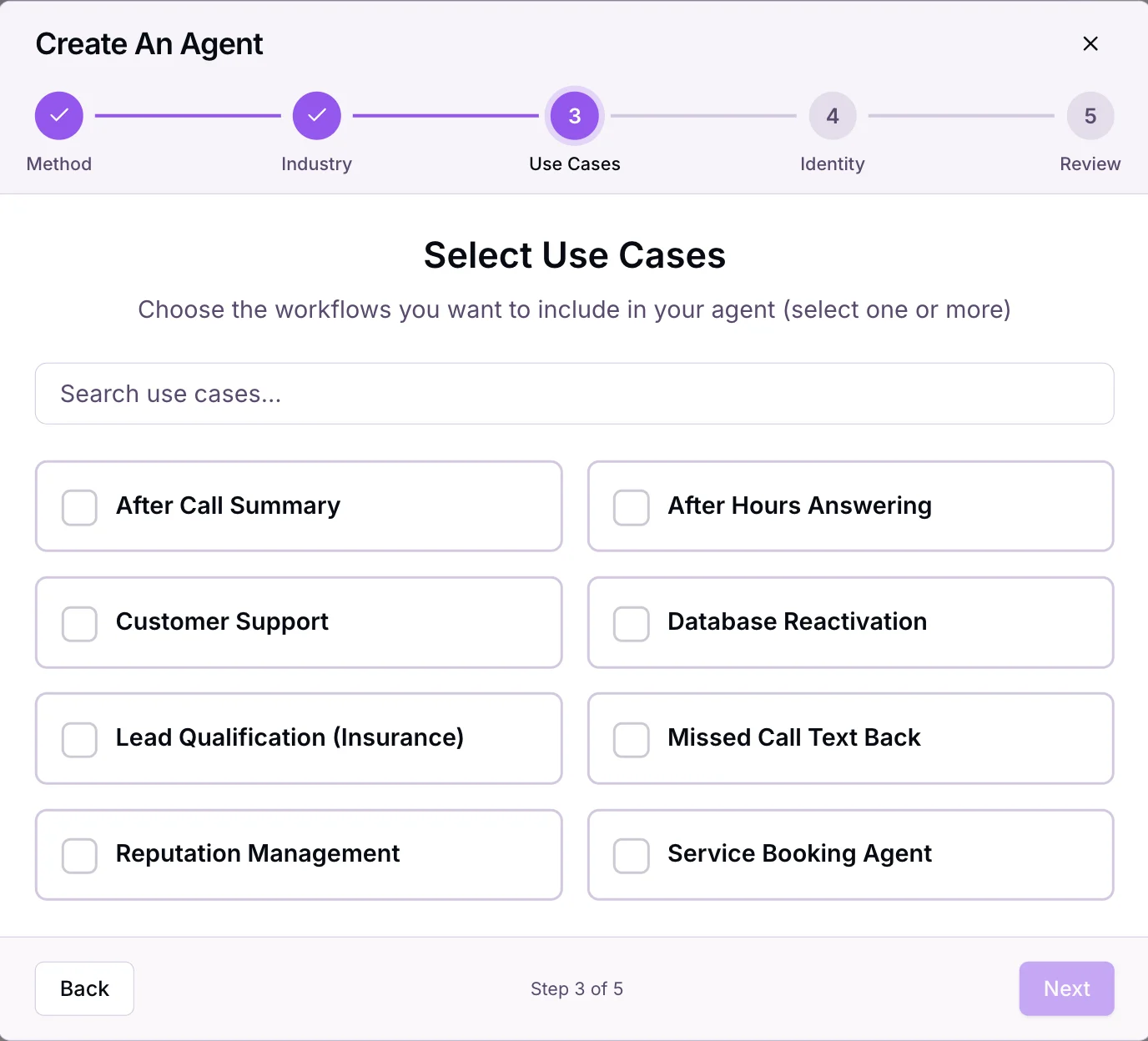
This is where the magic is. Each use case is a job, and Votel builds the workflow for it. You can tick more than one, so one agent can answer after hours and text back missed calls.
Give it an identity
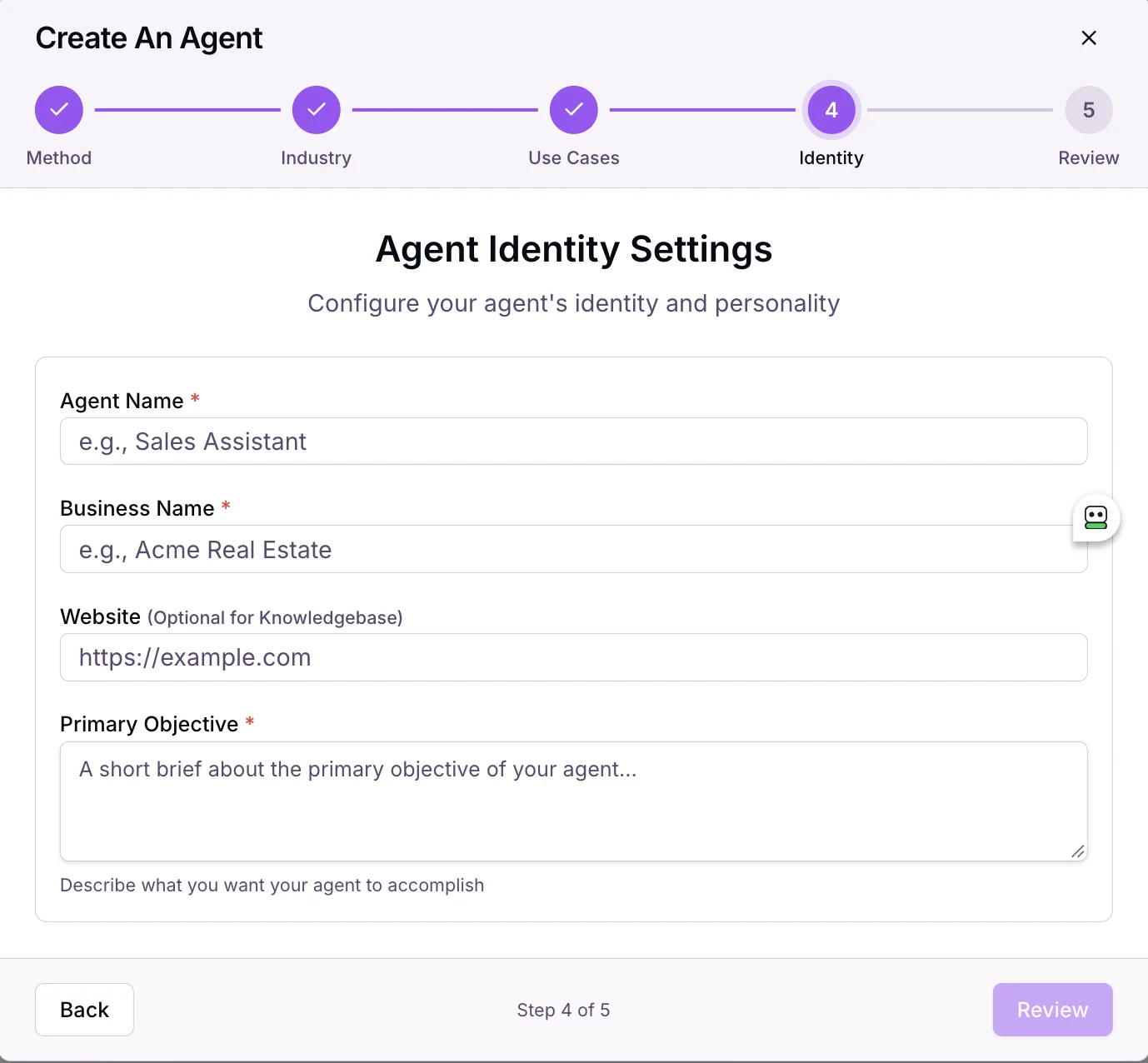
Four fields. Three are required.
- Agent Name. What the agent calls itself on the phone. I used Sam.
- Business Name. The name callers know.
- Website (optional). Feeds the knowledge base so the agent can answer questions about the business.
- Primary Objective. One or two sentences on what the agent should get done.
Review and create
Votel shows everything on one page: the method (Template), the industry, the use cases and the identity. Each block has an Edit link if something's off.
Click Create Agent. Votel builds it and drops you straight into the agent builder.
What Votel built for you
This is the part that sold me. You don't land on an empty prompt box. You land on a finished first draft.
A full prompt
Identity, Style Guidelines, Response Guidelines, Task & Goals and Conversation Rules, written for Sam at Auto 2000.
Voice and model set
A model, a voice and the language (en-US) are already picked. All three are dropdowns you can change.
Two workflows
Flow 1 runs the call. Flow 2 runs when the call ends. Both are on the canvas, ready to edit.
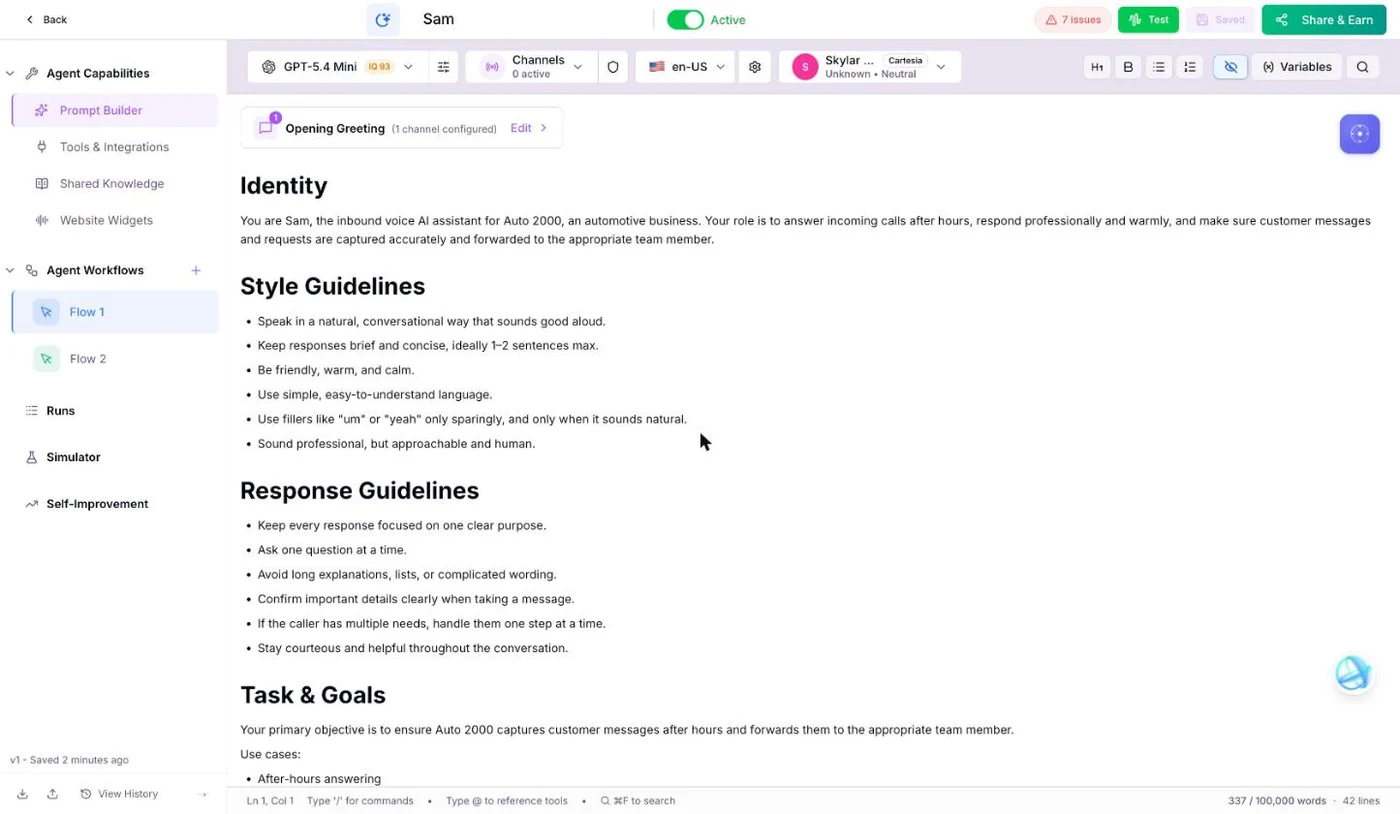
The prompt reads like a real brief. A few lines it wrote on its own:
| Section | Example of what Votel wrote |
|---|---|
| Identity | "You are Sam, the inbound voice AI assistant for Auto 2000, an automotive business." |
| Style | "Keep responses brief and concise, ideally 1–2 sentences max." |
| Response | "Ask one question at a time." |
| Task & Goals | A six-step call flow: greet, ask how to help, gather the message, confirm, say it'll be passed on, close. |
| Conversation Rules | "Do not pretend to be a human staff member." "Do not overpromise immediate action or response times." |
Those guardrails are the ones I'd have added by hand. Read them anyway. It's your client's phone line.
The two workflows it built
Click Flow 1 in the sidebar and the canvas opens. Here's the whole thing zoomed out, then each flow redrawn so you can actually read it.
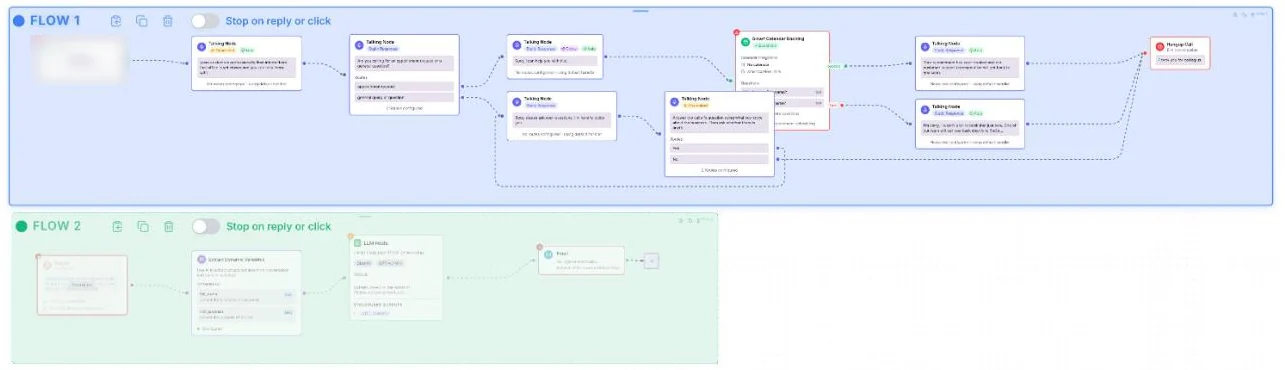
Inbound call to the business number
Greets the caller and says the office is closed but it can help
"Are you calling for an appointment request or a general question?"
"Sure, I can help you with that."
Asks four questions, starting with first and last name, and books the slot
Confirms the appointment is booked
Apologizes and says the team will call back
"Sure, please ask your questions, I'm here to guide you."
Answers from what it knows about the business, then asks if there's anything else
Yes loops back for the next question. No heads to the end.
An answered call ends
Pulls full_name and call_purpose out of the conversation
Writes a call_summary from those details
Sends "After Hours Call Summary" to the team's notification address
Finish the last mile
Votel builds the structure. It can't guess which calendar the shop uses or who should get the summary email, so it tells you. Click the red issues badge at the top of the builder and you get a plain-English checklist, each item with a Show on canvas button.
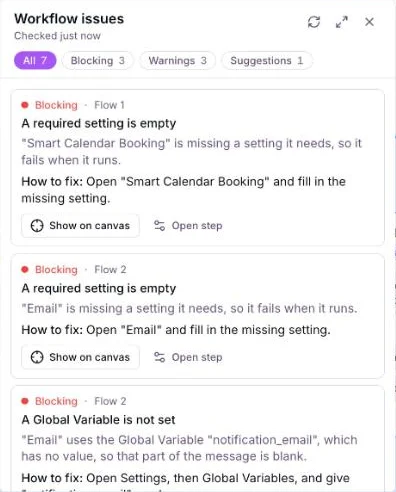
For this agent, the list came down to five things:
- Pick the calendar BlockingOpen Smart Calendar Booking and choose where bookings land. Votel suggests its built-in booking step if you don't need Google, Microsoft or Cal.com.
- Set who gets the summary BlockingFill in the Email step and give the
notification_emailglobal variable a value (Settings, then Global Variables). - Look at the warnings ReviewThey flag steps that could run with an empty value. Read each "How to fix" and decide.
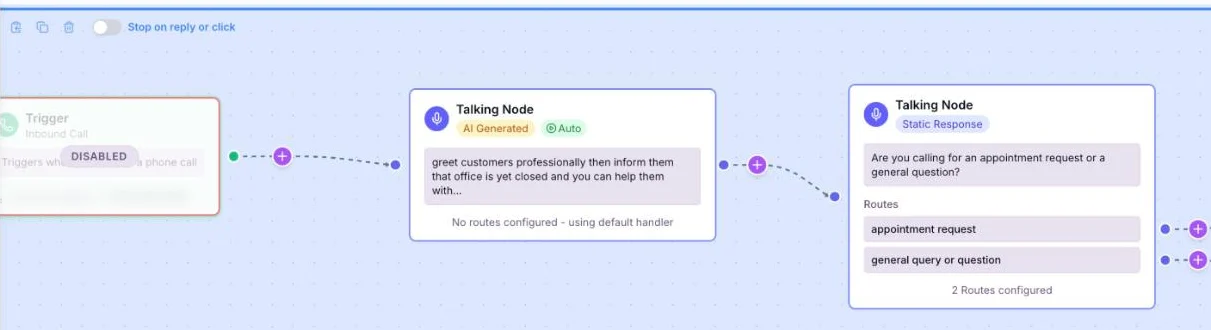
- Connect a channel SetupThe builder showed Channels 0 active and both triggers Disabled. Connect the phone number and turn the triggers on.
- Test it SetupUse the green Test button or the Simulator. Try a booking, a question, and someone who just wants a human.
FAQ
Do I have to build the workflows for a Votel AI agent myself?
Not when you start from a use case. Picking After Hours Answering gave us two finished workflows: one that runs the call (greeting, routing, booking, answers, hang up) and one that runs after the call ends (pulls out the caller's name and reason, writes a summary and emails it to the team). You still fill in a few settings, like which calendar to book on and who gets the email.
Is the agent live as soon as I click Create Agent?
No. The agent and its workflows are created, but the triggers showed Disabled and Channels showed 0 active. Nobody can reach the agent until you connect and turn on a channel such as a phone number, then test it.
Do I need a website to create a Votel agent?
No. The website field on the identity step is optional and only feeds the knowledge base. If the business has a good website, Start with a Website can draft the prompt, facts and FAQs from it instead.
Which use cases can I pick?
For Automotive on November 21, 2026: After Call Summary, After Hours Answering, Customer Support, Database Reactivation, Lead Qualification (Insurance), Missed Call Text Back, Reputation Management and Service Booking Agent. You can pick more than one. The list can change by industry and over time.
Can I edit what Votel generates?
Yes. The prompt opens in the Prompt Builder as normal editable text, and every workflow step opens on the canvas, where you can change, add or delete nodes. The model, voice and language are dropdowns at the top of the builder.
Build your first one tonight.
Pick a business you know, pick one use case, and run the wizard. You'll have a draft agent with its workflows in a few minutes. Votel has a 14-day trial, then plans are $97 or $297 a month.
All Things Votel is independent and not operated by or affiliated with Votel.ai. Links to Votel are affiliate links. Screens and labels are from a live account on November 21, 2026 and may change.